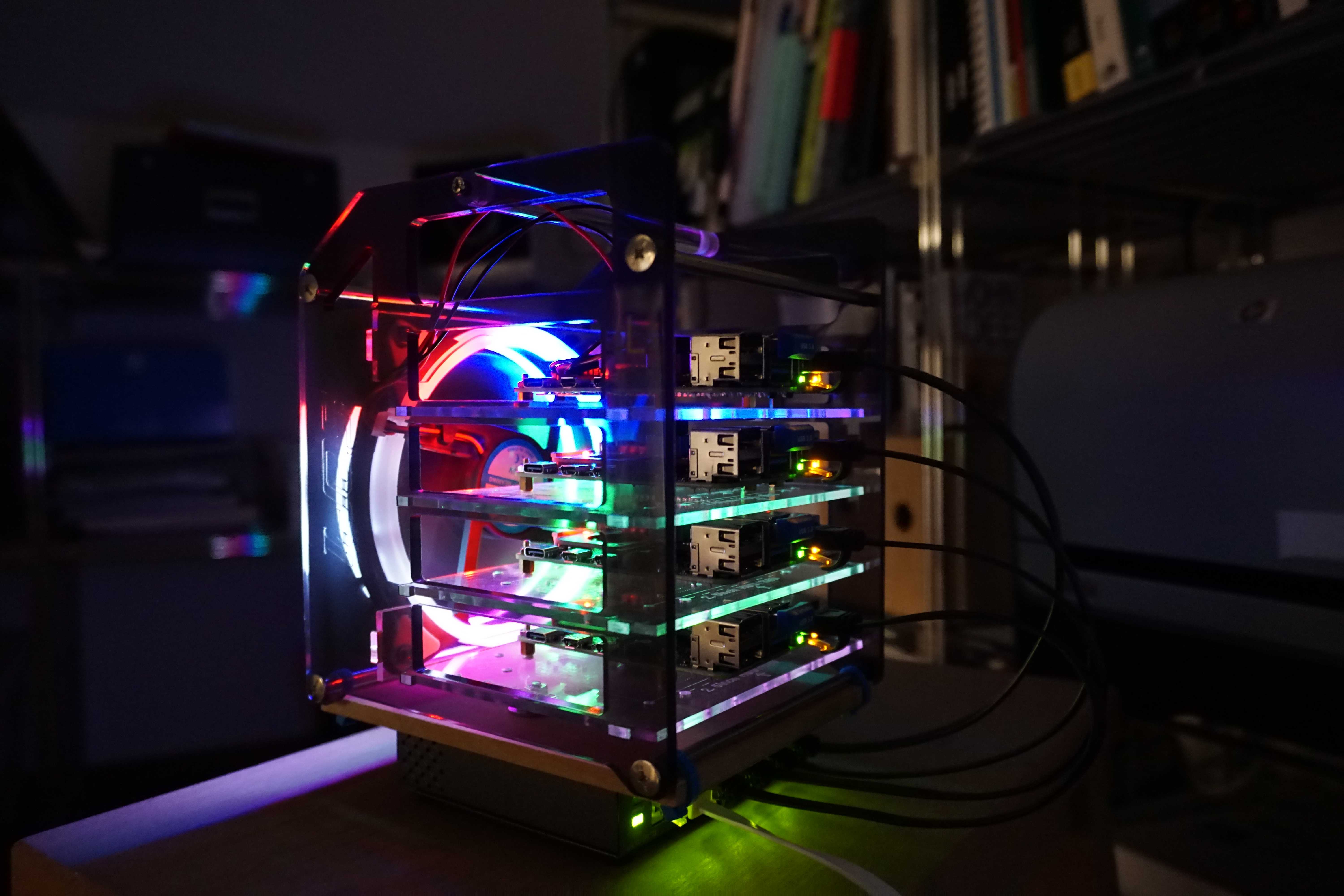
After finishing the hardware part of the cluster, let’s see how to setup Kubernetes.
Versions
Raspberry Pi OS Lite 2020-08-20 Release Notes
Rancher K3S 1.20.0 Product Page
Create the SD Cards
List the partitions in MacOS Terminal using diskutil list.
$ diskutil list
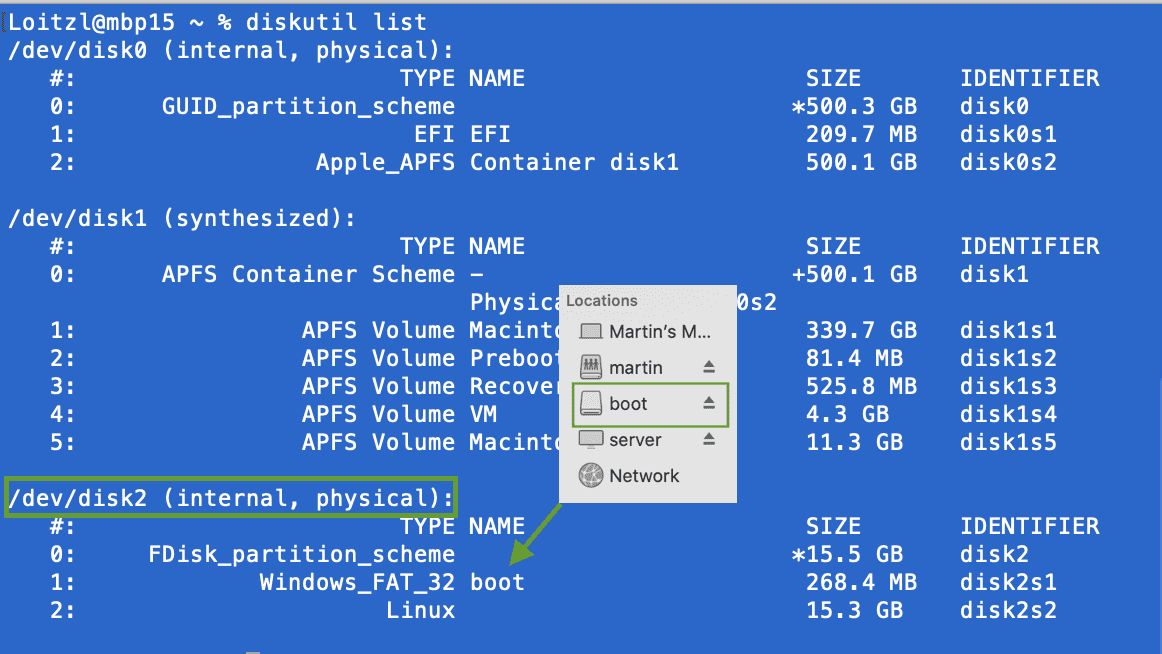
Be really really (really!) sure, that you take the right volume. It also helps if its named properly in Finder.
In this case it has the number 2.
Lets unmount it:
$ diskutil unmountDisk /dev/disk2Now lets go to the danger zone. dd the downloaded img file to the SD Card device.
Be sure that you get the right volume number /dev/rdisk->2<-. Using /dev/rdisk instead /dev/disk just makes the process a little faster.
$ sudo dd if=2020-08-20-raspios-buster-arm64-lite.img of=/dev/rdisk2 bs=8mThe output of dd is quite reduced, can make one nervous…
- … on MacOS hit Ctrl+T to get some information about the progress.
- … on most Linux distros there should be a command line option
status=progress.
$ dd if=/dev/urandom of=/dev/null count=131072 bs=1024 status=progress
129695744 bytes (130 MB, 124 MiB) copied, 4 s, 32.4 MB/s # progress
131072+0 records in  # records read
131072+0 records out # records written
134217728 bytes (134 MB, 128 MiB) copied, 4.13999 s, 32.4 MB/s  # totals, duration and speed
https://askubuntu.com/questions/215505/how-do-you-monitor-the-progress-of-dd https://www.raspberrypi.org/documentation/installation/installing-images/mac.md
Before pulling the SD Card out of the slot, we can already set some necessary boot options for running Kubernetes:
- enable cgroups
# Assuming that the new card has a boot partition that is mounted under /Volumes/boot
$ echo -n "cgroup_enable=cpuset cgroup_enable=memory cgroup_memory=1" >> /Volumes/boot/cmdline.txt
And let’s enable ssh since we are in a headless mode:
# Assuming that the new card has a boot partition that is mounted under /Volumes/boot
$ touch /Volumes/boot/ssh
First boot
Put the cards into the Pis and start them up with the Ethernet cables connected.
Find a way to determine the IP addresses, for example by logging into your router Web UI. Or if you like the more Linux way using arp commands:
Immediately change the password!
The default password currently is “raspberry” - by the way.
$ ssh pi@192.168.1.x
$ passwd
Update the Pis
$ sudo rpi-update
$ sudo reboot
K3S first contact
Now we can check if the host OS is any good for running Rancher K3S.
$ curl -sfL https://raw.githubusercontent.com/rancher/k3s/master/contrib/util/check-config.sh | sh -In my case it complained about, that iptables is too new. Raspberry OS has a simple way to fix this:
$ update-alternatives --set iptables /usr/sbin/iptables-legacyInstall K3S
The actual setup is unbelievably easy, just run:
Master Node
$ sudo curl -sfL https://get.k3s.io | sh -Worker Nodes
Get the node token on the master node
$ sudo cat /var/lib/rancher/k3s/server/node-tokenRun this command with the ip of the master node and the node-token from above command.
$ curl -sfL http://get.k3s.io | K3S_URL=https://<MASTER NODE IP>:6443 \
                      K3S_TOKEN=<NODE TOKEN> sh -
Done!
Don’t believe it?
$ sudo kubectl get nodes
NAME                 STATUS   ROLES                  AGE    VERSION
barbarachristensen   Ready    control-plane,master   4m4s   v1.20.0+k3s2
janerose             Ready    <none>                 4m4s   v1.20.0+k3s2
maryireland          Ready    <none>                 4m4s   v1.20.0+k3s2
dianabeverley Ready <none> 4m4s v1.20.0+k3s2Convenience Features
Non-root access
Enable non-root access to kubectl:
$ cat /etc/rancher/k3s/k3s.yaml > ~/.kube/configBash auto completion
Enable bash auto completion:
The link contains also information for other OSes.
$ sudo apt-get install bash-completion
$ echo 'source <(kubectl completion bash)' >>~/.bashrc
$ echo 'alias k=kubectl' >>~/.bashrc
$ echo 'complete -F __start_kubectl k' >>~/.bashrc
Shutdown remotely
#!/bin/sh
for i in `cat nodes.lst`;
	do /usr/bin/ssh -t $i /usr/bin/sudo /sbin/poweroff;
done
$ cat nodes.lst
192.168.1.60
192.168.1.61
192.168.1.62
192.168.1.63To avoid entering a password for each node, copy the ssh key to each node:
$ for i in `cat nodes.lst`;do /usr/bin/ssh-copy-id $i;donefrom: https://www.simplylinuxfaq.com/2015/02/how-to-shutdown-remote-system-via-ssh-without-password.html
After getting passwordless authentication to work it might be a good idea to password authentication completely.
Related
- Portable Kubernetes Cluster based on Raspberry Pi 4 and Rancher K3S
- Setup mini Kubernetes Rancher K3S on Raspberry OS Lite (this)
- Storage class and nfs provisioner
- Setting up a four times redundant gluster volume with mini USB sticks
- Automatically provision Gluster volumes with Heketi